What is Community Events Australia?
Community Events Australia helps you discover, share and manage local community events, including Majlis, Milad, lectures, prayers, duas, programs and more, with Hijri calendar support, recurring events, map view, private event sharing, calendar sync and live streaming to YouTube.
On this page
🏠 Home Screen
Browsing events
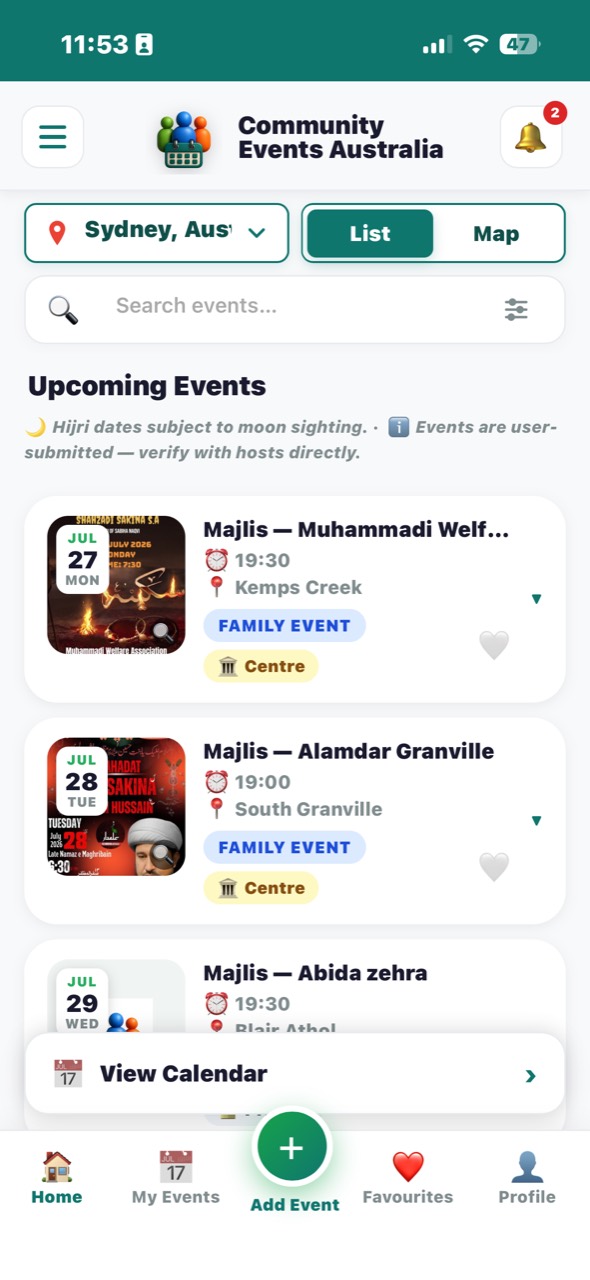
The Home screen shows upcoming community events in date and time order for your selected city. Users can choose a default city in Profile and temporarily switch city from the Home screen.
Search & filter
Use the search bar to find events by keyword, suburb, organiser, audience type, speaker or event type. Tap the filter icon to narrow results by time period, organiser type, audience type, host or suburb.
Notifications
Tap the bell icon to see upcoming alerts grouped into Today and Tomorrow. A section only appears when it has events.
Navigation
The bottom bar gives you: Home, My Events, the green + button to add a new event, Favourites, and your Profile.
🗂 Event Cards
Collapsed view
Each card shows a date chip (day, month, weekday), a thumbnail (the event's poster if uploaded, otherwise the organiser's logo), an audience badge, and an organiser badge — Centre or Private.
Expanded view
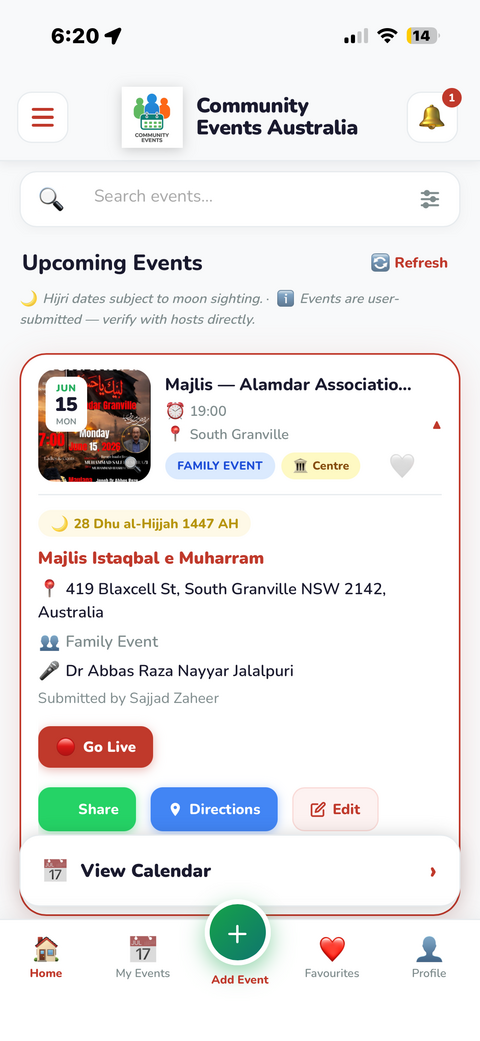
Tap any card to expand it and see the Hijri date, full address, speaker/reciter names, and organiser details.
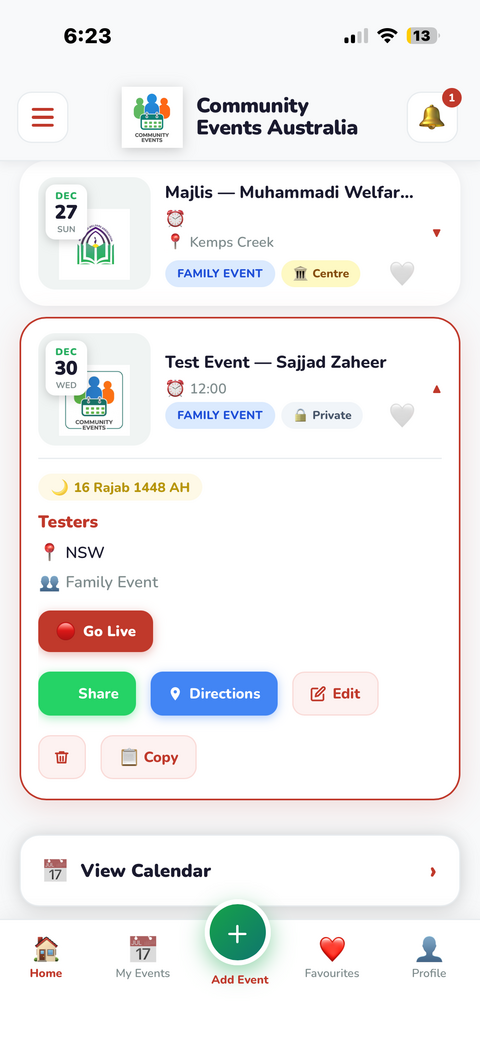
From the expanded card you can: Share the event (with poster image) via WhatsApp, SMS or any app; get Directions via Google Maps; or tap the heart icon to Save it to Favourites.
Poster zoom
If a poster image was uploaded, tap the thumbnail to view it full screen.
➕ Adding an Event
Step 1 — Choose event mode
Tap the green + button in the bottom navigation. Choose Single Event. Admins and Super Admins can also choose Recurring Event; normal users can see recurring events but the option is disabled.
Step 2 — Basic details
Choose an event type such as Majlis, Milad, Prayers, Dua, Prayers & Amal, lecture or other custom program type. Enter the subject, host name and organiser. If you choose a centre, the host name is filled from the centre name. Private and other-centre events can still use the "on behalf of" host fields.
Step 3 — Date
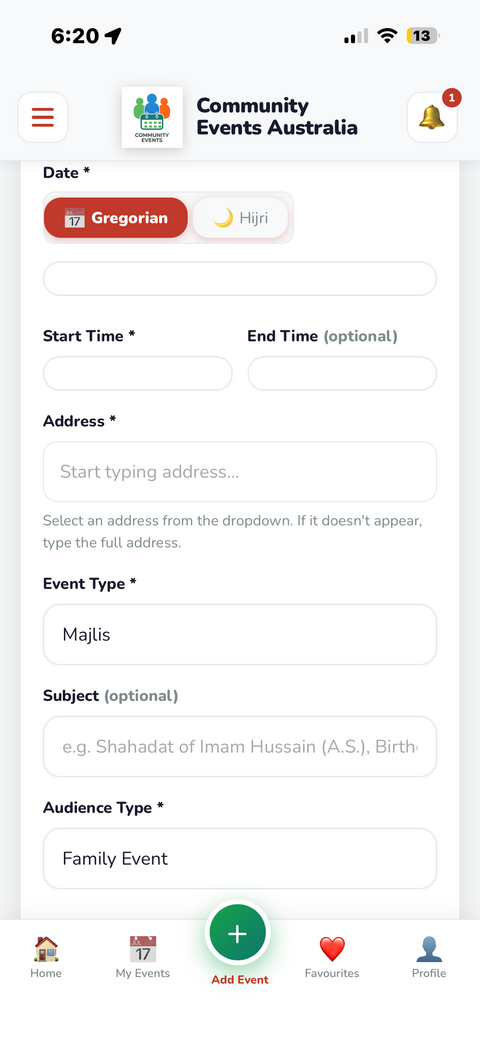
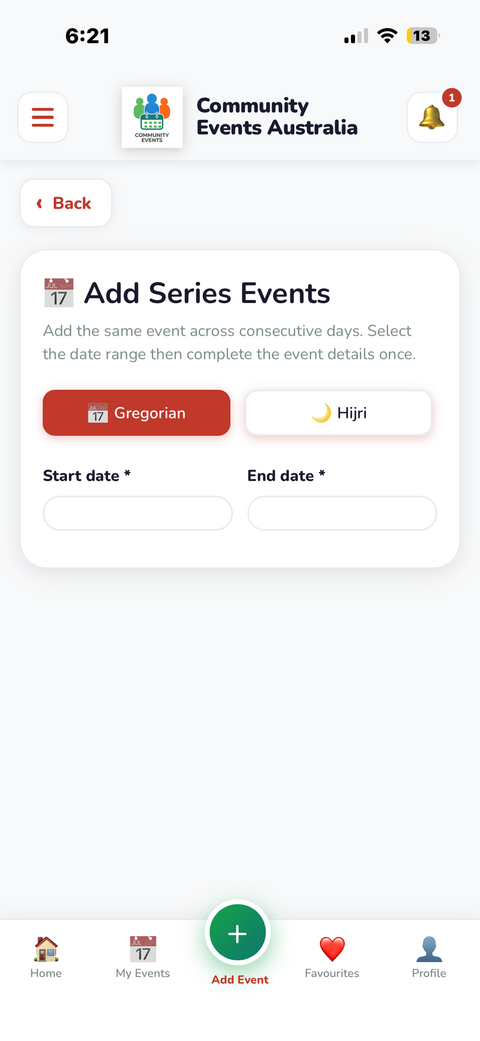
Enter the date as a regular calendar date, or toggle to Hijri date entry and pick the Islamic date directly — the app calculates the matching Gregorian date based on the community's moon-sighting overrides.
Step 4 — Time
Choose Fixed Time to enter the start and optional end time manually, or choose Prayer Time (Variable) to select Fajr, Zohrain, Asr, Maghreb or Isha. Prayer-time events can use a positive or negative offset in 30-minute steps, and the app calculates the actual time from the event date and selected address.
Step 5 — Audience, address, notes & poster
Select the audience type — Gents, Ladies, Kids, or Family Event. Use the address field's Google Maps autocomplete to set the venue; this is required for directions, map view and prayer-time calculation. Optional notes are shown on event cards and included in generated share messages. You can also upload a poster image for the card thumbnail.
Step 6 — On behalf of someone else
Tick "Adding on behalf of someone else" if you're submitting for another host — you'll still own and manage the event.
Step 7 — Submit
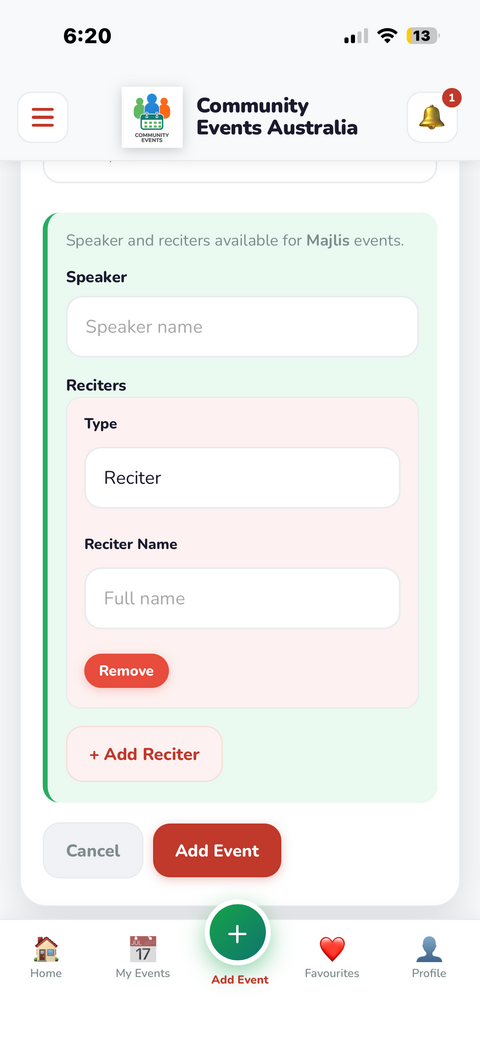
For Majlis events, you can also add a speaker and multiple reciters, including Hadees-e-Kisa, Soz, Salam, Noha, Manqebat and other recitation types. Reciters can be reordered so they appear in the event flow. The app highlights any missing mandatory date, time or address before saving. After a successful save, it confirms the event was added, clears the form and returns to the Home screen.
📆 Recurring Events
For repeated programs
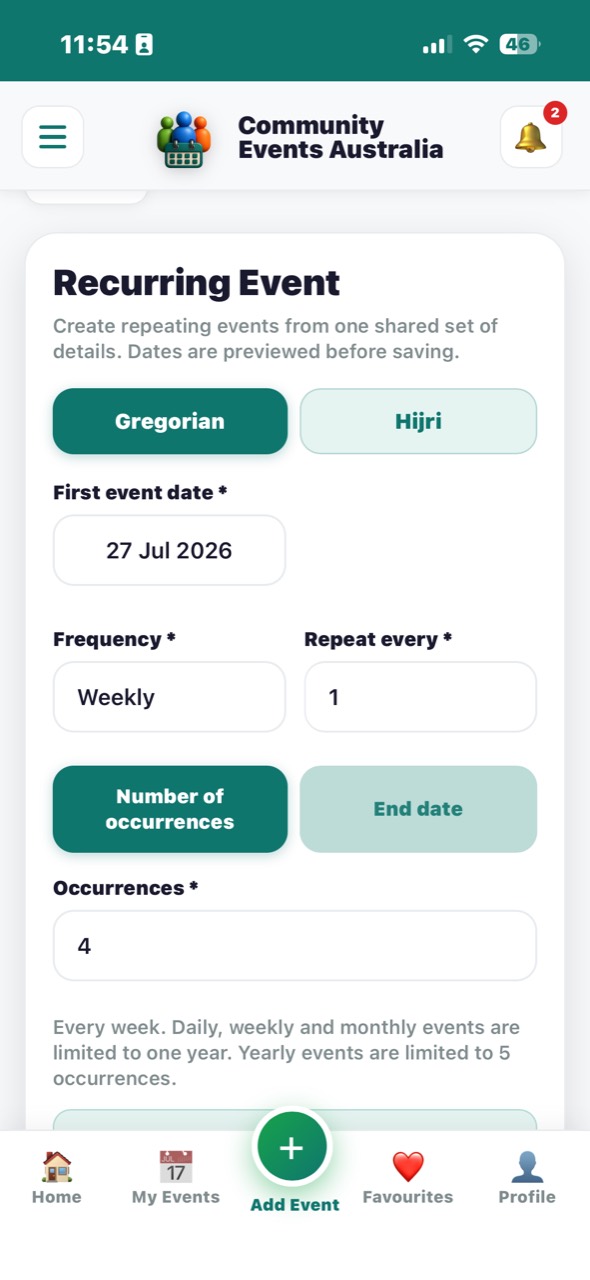
Recurring Events are available to Admins and Super Admins. Choose daily, weekly, monthly or yearly recurrence, then choose the interval and either an end date or number of occurrences. Daily, weekly and monthly recurring events are limited to one year ahead. Yearly recurring events are limited to five occurrences.
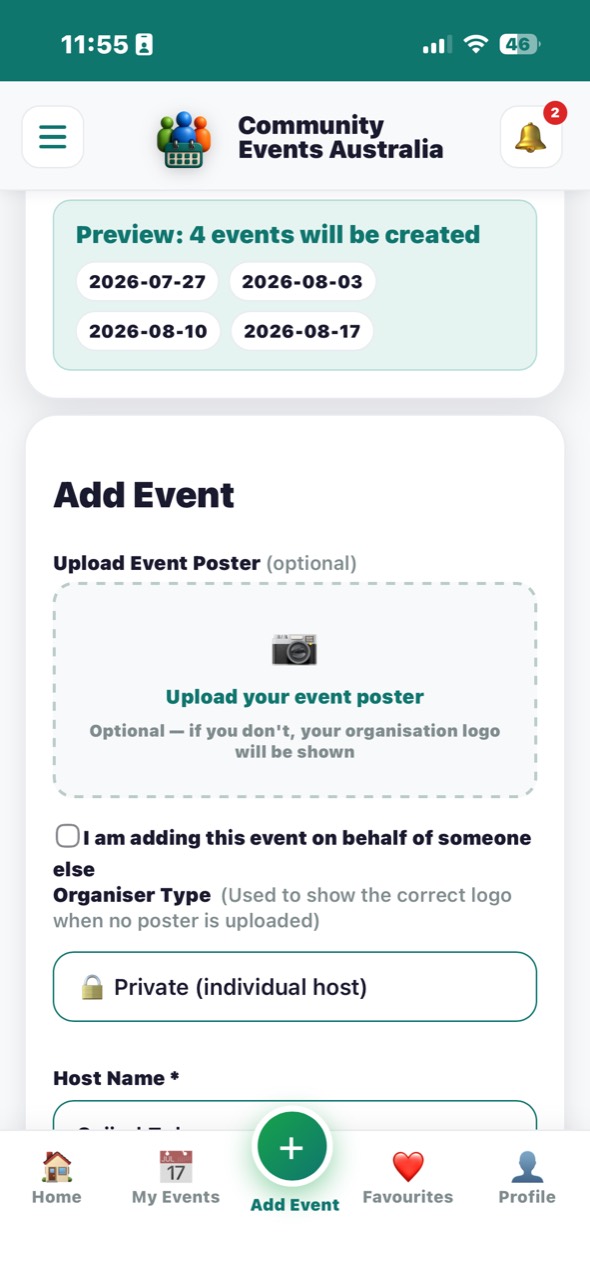
A preview shows every date that will be created before submission. Submitting creates separate event records for each occurrence, while keeping them linked as one recurring series for administration.
Admins can filter recurring events in the Admin Dashboard and edit, deactivate or delete an entire recurring series where required.
✏️ My Events & Hidden Events
Managing your events
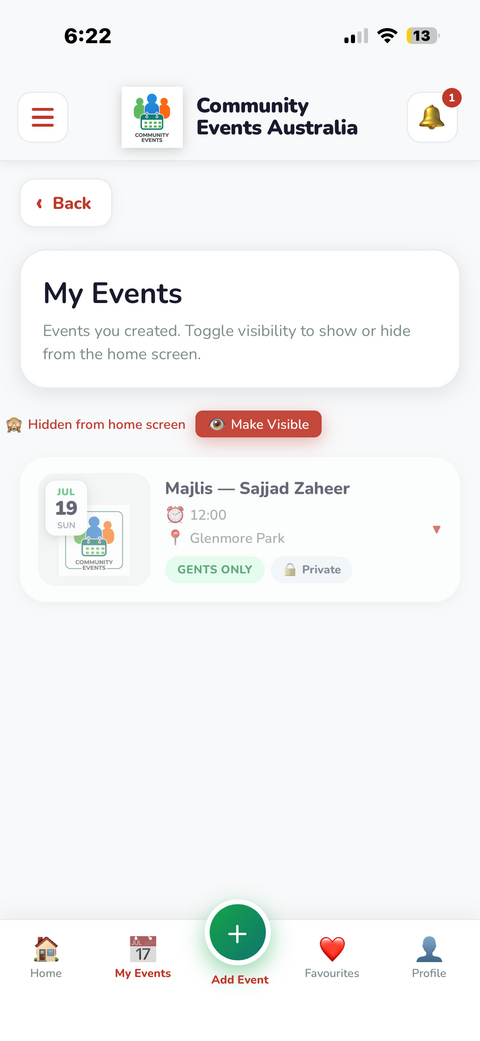
Go to My Events to see everything you've created. From here you can edit, copy, share or delete any of your own events.
Hiding an event
Tap the eye icon to mark an event as hidden. Hidden events:
- Disappear from the home screen and search — nobody browsing the app can find them
- Are excluded from all reminder emails and notifications
- Remain visible to you in My Events
Sharing a hidden event privately
From My Events, tap Share on a hidden event to send its details directly to specific people via WhatsApp, SMS, or any message. The recipient can view full event details — but anyone else using the app will never see this event unless you specifically share it with them. This is ideal for ladies' programs, private gatherings, or anything where you need to control who knows about it.
🗺️ Map View
Viewing events on a map
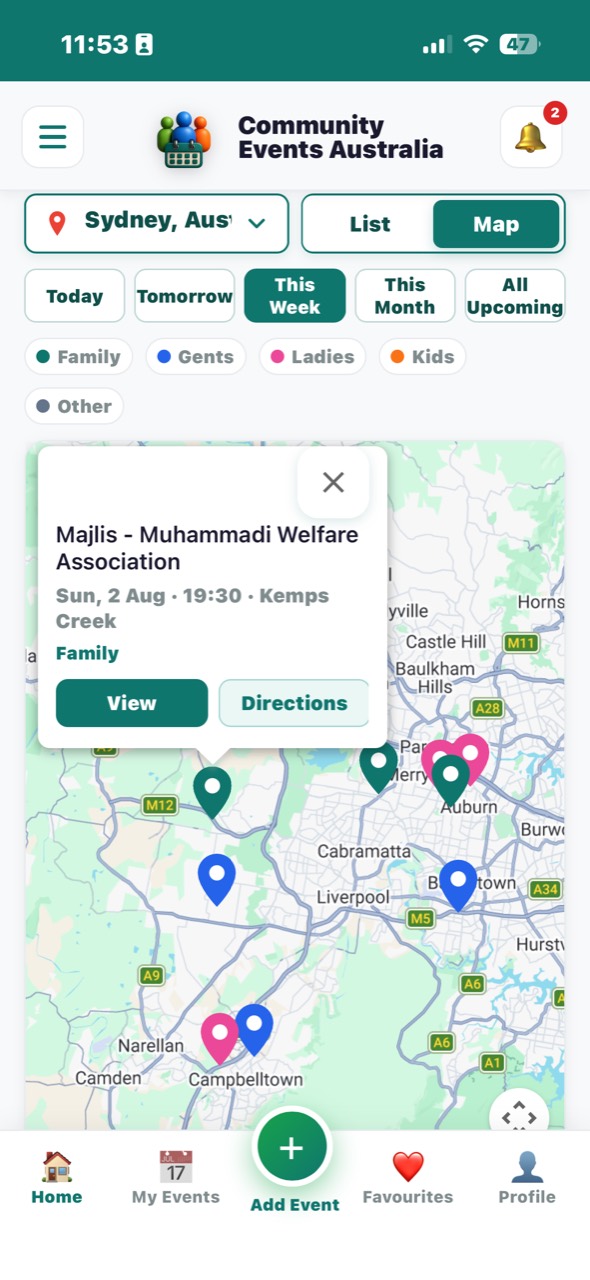
Logged-in users can switch between List and Map view from the Home screen city selector row. The map shows eligible events using the saved address coordinates and helps you see which areas have programs before planning travel.
Marker colours
Markers use audience colours where available: ladies-only events are pink, gents-only events are blue, family events are teal, and kids or other events use the default marker style. Tap a marker to see the event and open directions.
Guest access
Guest users cannot use Map view. This protects private event address information for users who have not signed in.
🔴 Live Streaming
Going live
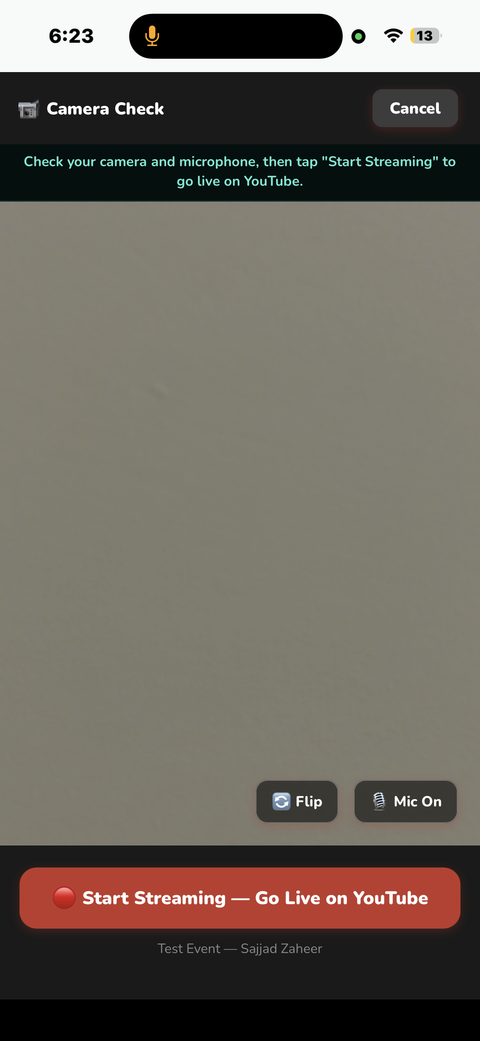
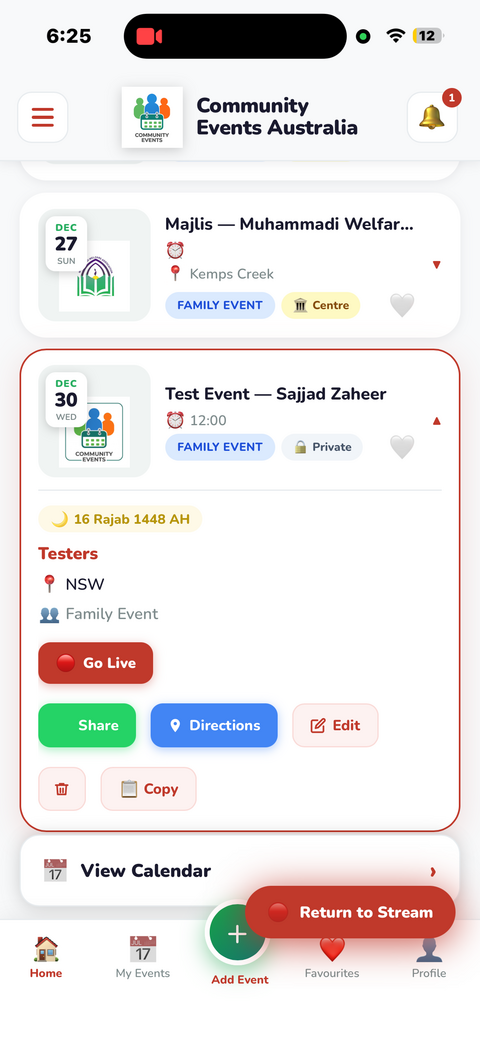
Open one of your events and tap Go Live. Choose Public if the community should see a Watch on YouTube button, or Private if you want YouTube unlisted/link-only visibility. Choose portrait or landscape before starting. On Android native streaming, the app waits for the phone to match the chosen orientation before the stream can start.
While you're live
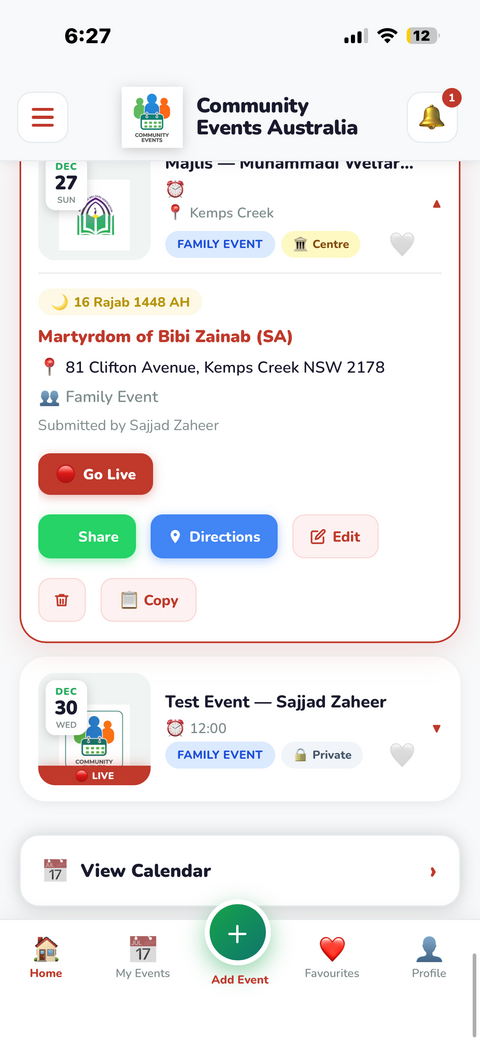
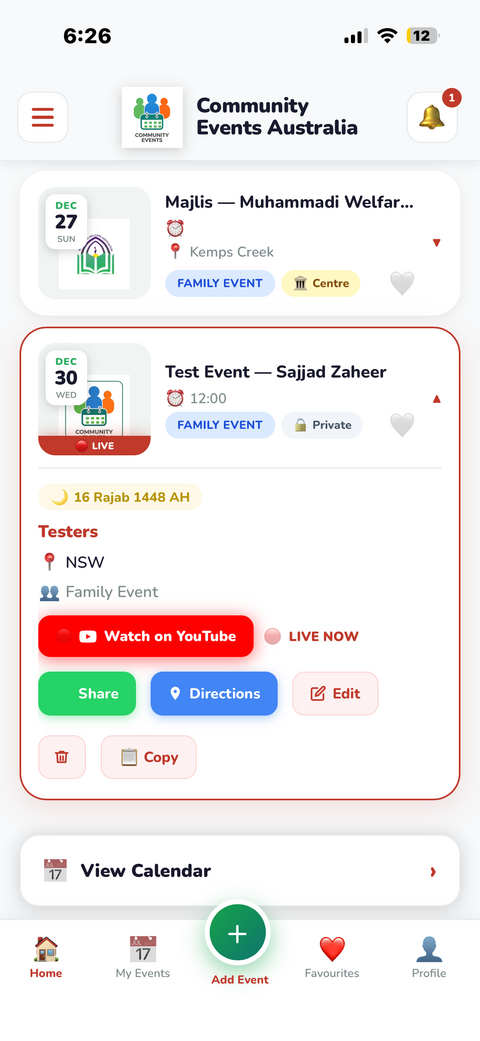
The app creates or resumes a YouTube broadcast and starts streaming to the Community Events YouTube channel. Public streams show a LIVE NOW badge and Watch on YouTube button on the event card. Private streams are host-controlled, are not shown as public stream links in the app, and the host may receive the private YouTube link by email once live.
The streaming screen shows live status, mic level, orientation warning and stream controls. Controls can auto-hide while the video remains visible. Your screen stays awake automatically while streaming, but switching apps or locking your phone can still interrupt the broadcast.
Streaming from another device
If you are using another camera or streaming device, choose that option and enter the YouTube live video URL. Once accepted, the event is marked live and public viewers use that YouTube link. End the stream from the app when it should no longer appear live.
Ending the stream
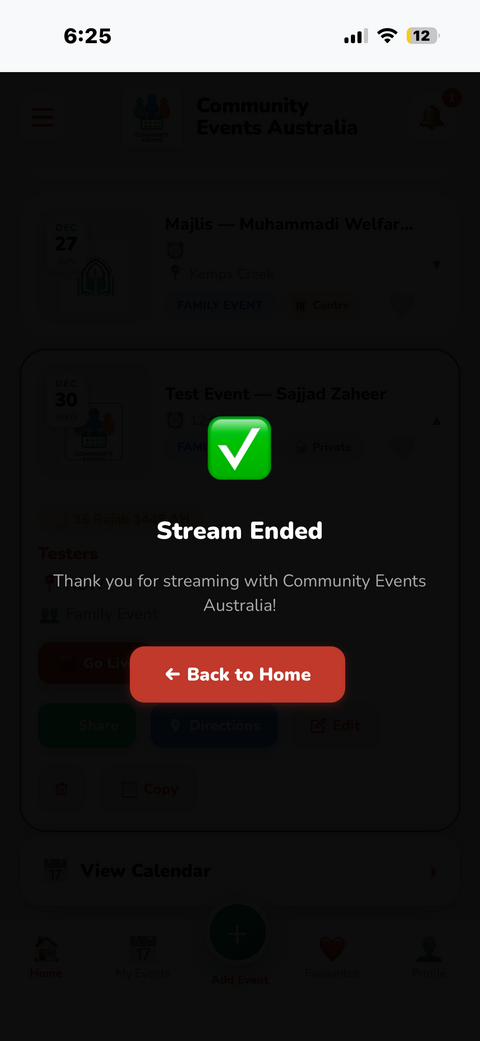
Tap End Stream. The app clears the event live status and removes any LIVE badge or Watch on YouTube button from event cards. YouTube may take a short time to finish processing the broadcast or recording.
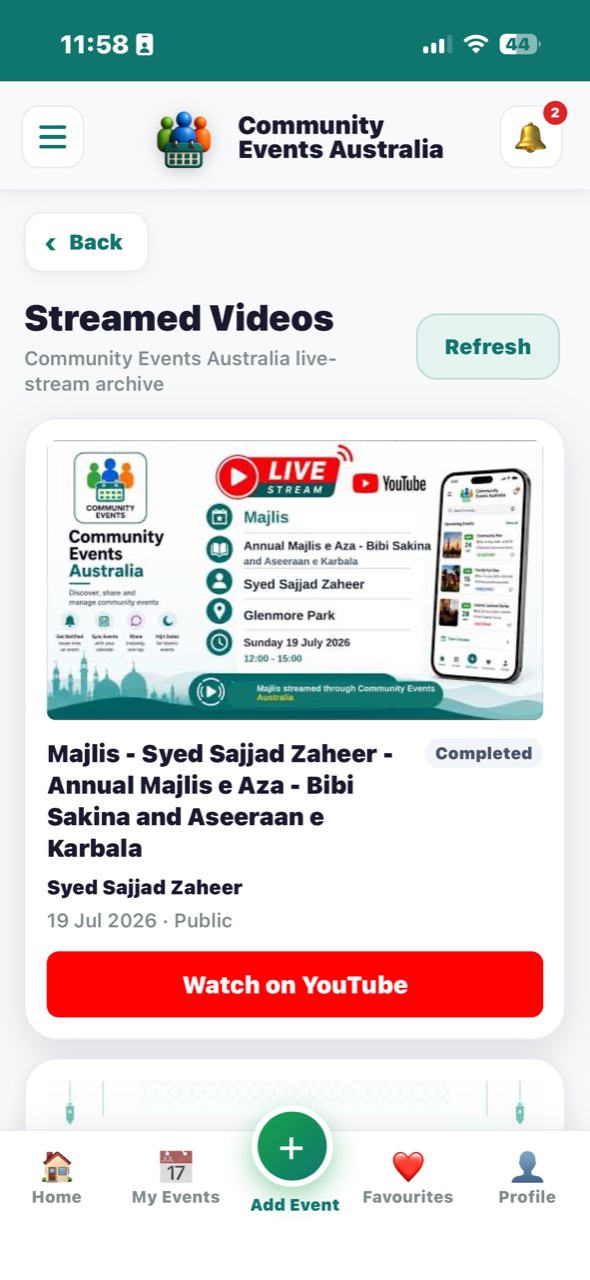
Streamed videos archive
The streamed-videos screen lists public broadcasts from the Community Events Australia YouTube channel that are available for viewing. Deleted or unavailable YouTube videos are not intended to remain visible in the app.
📤 Bulk Share
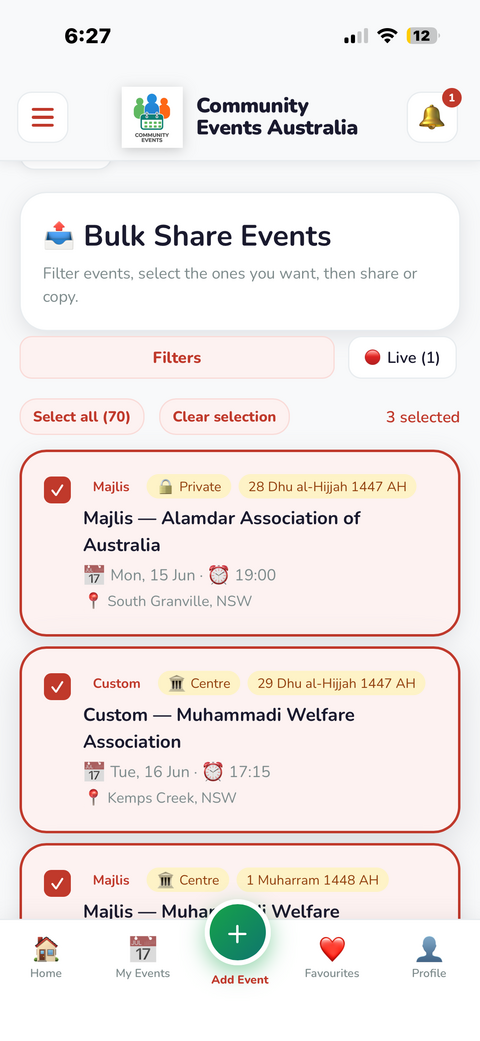
Sharing multiple events at once
Bulk Share lets organisers select several upcoming events and generate one formatted message ready for WhatsApp, SMS or other sharing apps. The detailed format includes full event details where permitted. The brief format lists host, date, time and suburb only.
Generated messages group events under Centre Programs and Private Programs, include notes where entered, and finish with the app download link so recipients can install Community Events Australia.
📅 Calendar Sync & Reminders
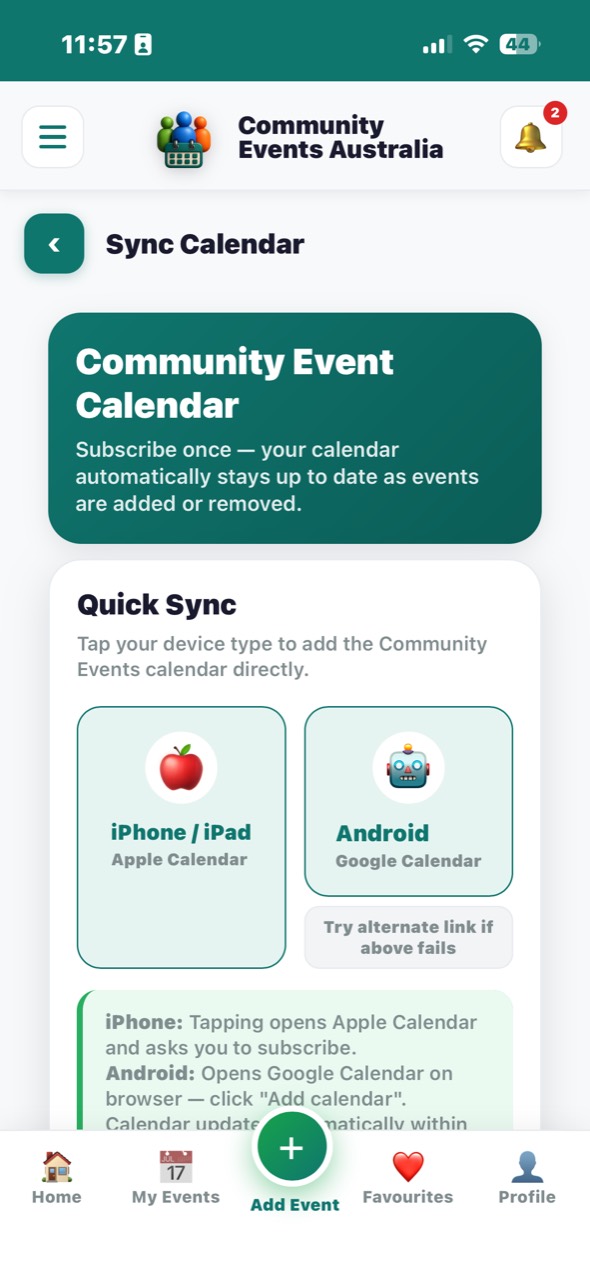
Calendar Sync
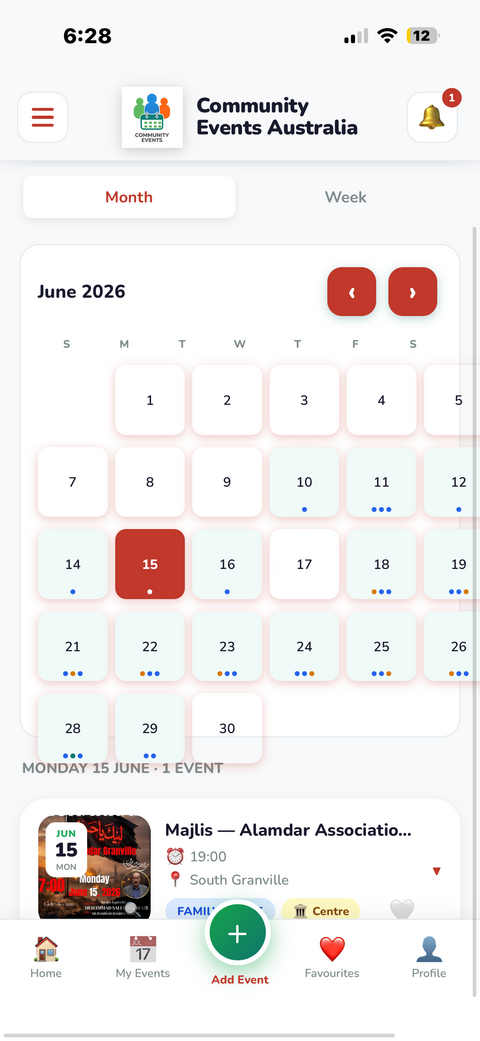
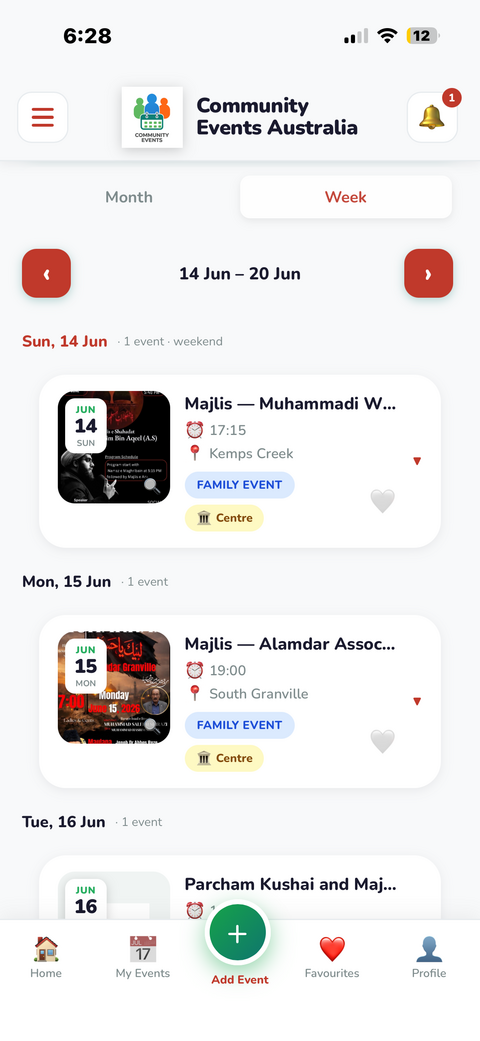
Go to the Calendar view and use calendar sync to subscribe to the Community Events feed where supported. If a browser or native wrapper blocks one-tap subscription, the app can provide a calendar feed URL or downloadable .ics file as a fallback.
Calendar entries include host name, event type, date, calculated or fixed time, address and audience type. Hidden events are excluded.
Email reminders
A daily reminder email may be sent around 7:00 PM for upcoming programs, where reminders are enabled. Admin and Super Admin users may also receive separate administrator alerts, which can be turned off separately in Profile.
🛠️ Admin Dashboard
Managing organisations
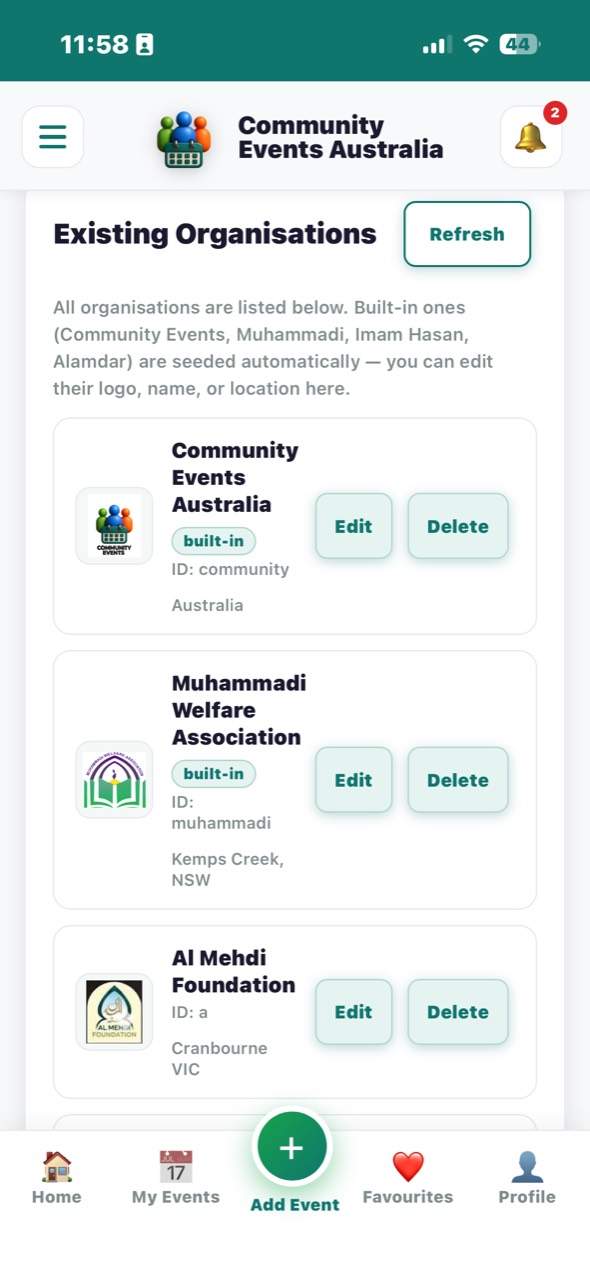
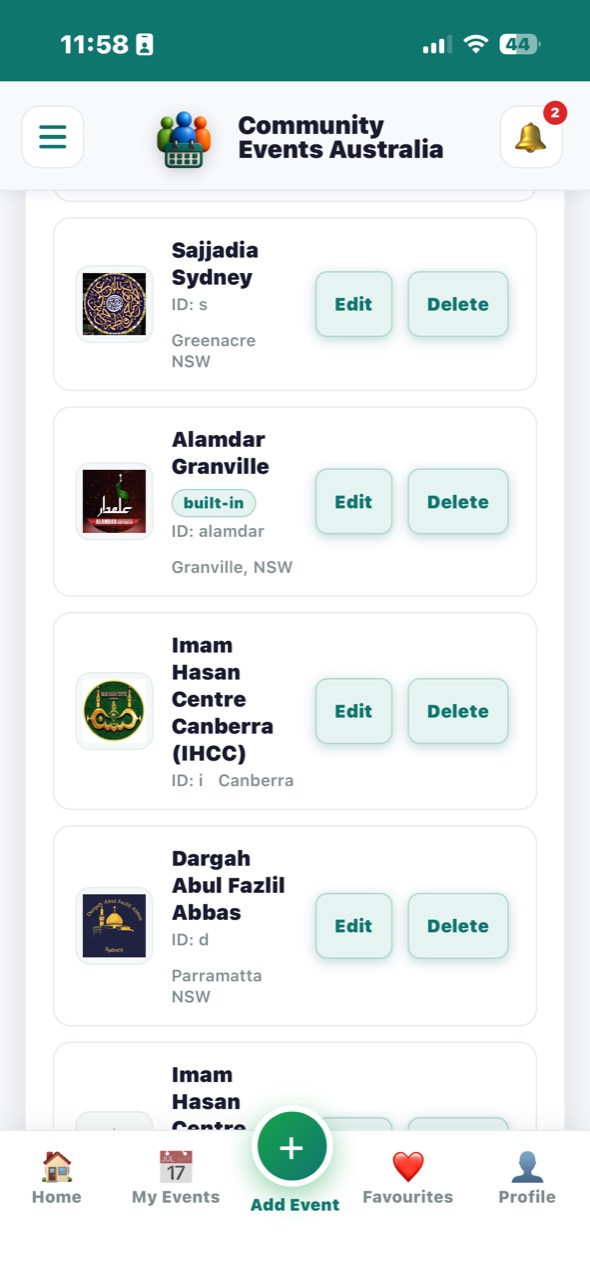
Admins and Super Admins can manage registered organisations from the Admin Dashboard. Organisation logos are used on event cards when an event does not have its own poster. Built-in organisations can be refreshed and updated with corrected names, logos and locations.
Other admin tools
The Admin Dashboard includes event management, ownership transfer, recurring-series filters, Hijri calendar correction, user management, calendar sync visibility, stream tools and email controls. Some actions, such as user export, are restricted to Super Admins.
👥 User Roles
👤 User
Add, edit, hide and delete their own single events. View eligible event details, use map view, go live for their own events, manage favourites, sync calendars and update their profile.
🛠 Admin
All User permissions plus: create recurring events, edit or deactivate recurring series, edit or transfer ownership of events, manage organisations, adjust Hijri calendar settings and receive optional admin alerts.
👑 Super Admin
All Admin permissions plus: manage user roles, promote, demote or ban users, export user contact lists and access super-admin-only controls. A final remaining Super Admin cannot remove their own Super Admin role without appointing another Super Admin first.
ℹ️ Important Notes
- Past events are moved out of the active list and retained as inactive/archive records rather than simply erased.
- Calendar entries show basic info only — full details are always available in the app for authorised users.
- Hidden events are excluded from search, the home screen, reminders and calendar sync — but can still be shared privately.
- Public streams can appear on event cards and in the streamed-videos list. Private streams use YouTube unlisted/link-only visibility and should be shared only by the host or YouTube channel administrator.
- Prayer-time events depend on the selected address coordinates, date, time zone and calculation method. Always verify final program times with the host.
- Deleting your account deletes your account/profile details, but events you created are retained as event history and can be made inactive immediately or at their normal expiry date.
Need Help?
Contact us at: Support Page or communityeventssydney@gmail.com